How to Add Credits to Your SmsLocal Account #
To recharge your SMS Local account, follow these steps:
Step 1: Open the Recharge Section #
-
From the left-hand menu, click “Add Balance.”
-
You’ll be redirected to the Recharge page.

Step 2: Choose Your Credit Amount #
-
Enter the amount you wish to recharge (for example, ₹100, ₹4000, etc.).
-
The system will automatically display your Estimated SMS Volume, Per SMS Cost, and GST (18%).
-
Review the total before proceeding — you can also compare rates in the Pricing Plans panel on the right.

Step 3: Review and Confirm Your Recharge #
-
After entering your recharge amount, click on submit button.
-
you’ll see the Recharge Invoice screen.
-
Review your purchase details, including:
-
Item List: Wallet Credit
-
Quantity: Number of SMS credits you’ll receive
-
Unit Price: Cost per SMS
-
Tax (GST 18%) and Total Price
-
-
Confirm everything looks correct.
-
Click “Make A Payment” to complete your transaction securely.

Step 4: Proceed to Payment Gateway #
-
You’ll be redirected to the Razorpay payment page.
-
Click “Pay with Razorpay” to continue.

Step 5: Choose Your Payment Method #
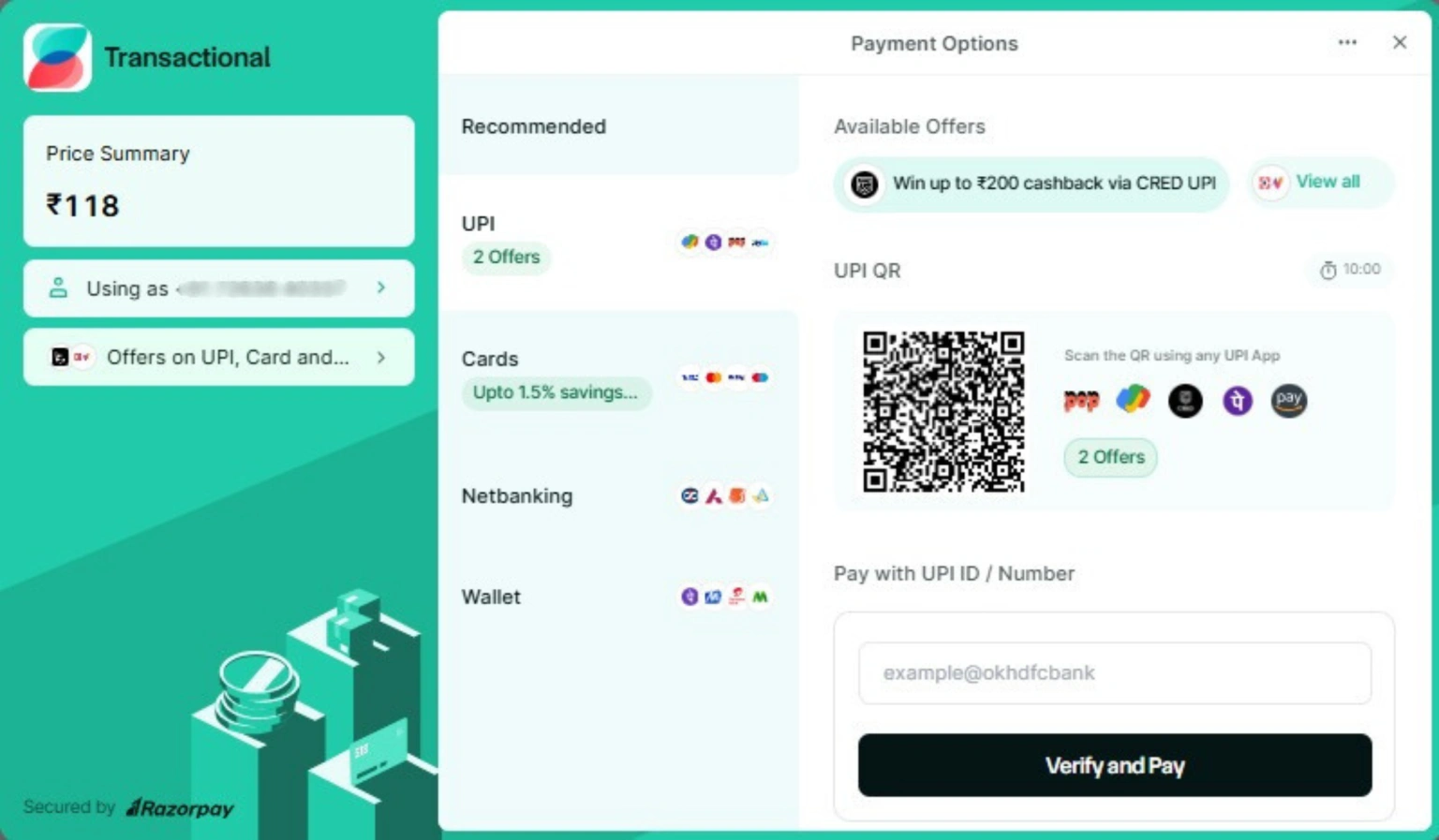
On the Razorpay Payment Options screen, review your total amount (₹118) and any available offers.
Select your preferred payment mode from the available secure options:
UPI: Pay instantly using apps like Google Pay, PhonePe, or Paytm.
Cards: Use debit or credit cards (Visa, Mastercard, RuPay, etc.).
Net Banking: Pay directly from your bank account.
Wallets: Use digital wallets such as Paytm Wallet or Mobikwik.
After selecting your payment method, scan the QR code or proceed with your chosen option to complete the transaction securely.
Note: Multiple secure payment options are available via Razorpay for your convenience and safety.
Step 6: Explore Payment Offers #
Before completing your transaction, review the available cashback and savings offers displayed on the Razorpay payment screen.
You can find offers such as:
-
CRED UPI: Win up to ₹200 cashback.
-
NeuCard UPI: Save up to 1.5% on UPI transactions.
-
NeuCard EMI/Non-EMI: Earn up to 1.5% savings on eligible card payments.
If any offer applies to you, click “Apply” next to the deal to activate it before payment.

Step 7: Payment Successful #
After completing your payment, you’ll see a “Payment Successful” confirmation screen.
-
The amount paid (₹118) and your transaction ID will be displayed.

Step 8: Final Confirmation – Payment Success ✅ #
Once the Razorpay transaction is complete, you’ll be redirected to the Payment Success page on your SmsLocal dashboard.
This page confirms that:
-
Your online recharge payment was successful.
-
400 Transactional credits (or your selected amount) have been added to your account.
-
A Payment ID (e.g.,
pay_RaLqQcUD4EXhYvV) is displayed for your reference.

You can now click “Messaging” to return to your dashboard and start using your credits instantly.


